
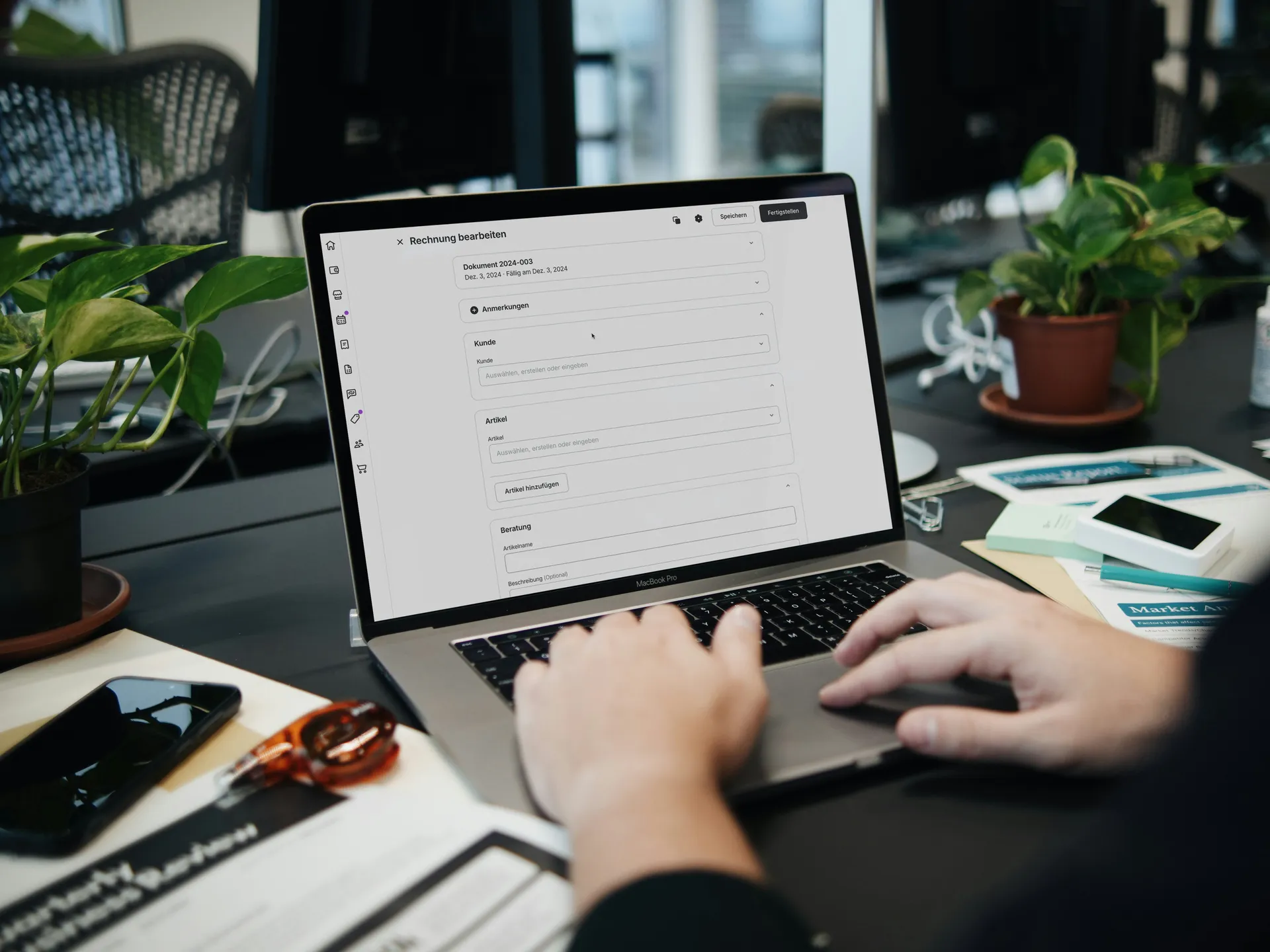

Most services firms don't have a time tracking problem. They have a billing problem that starts in time tracking. Hours get logged late, tagged wrong, or never tied to the client who should pay for them, and finance finds out at month-end when the invoice is already short. This guide walks through how to set up ClickUp so every hour lands with the right billable status, gets approved before it reaches an invoice, and feeds the utilization numbers leadership actually uses. It's written for CFOs and finance leads who own the revenue line.
Why Do Services Firms Lose Money on Time Tracking?
The leak is rarely dramatic. A consultant finishes a two-hour client call, means to log it, and remembers on Friday as forty minutes. A project manager spends an afternoon clarifying scope and nobody marks it billable. Multiply that across a 40-person delivery team and lost billable hours become one of the largest margin drags a professional services firm carries, and one of the least visible.
The benchmarks are sobering. Clio's 2025 Legal Trends Report benchmarks put average law-firm utilization at 38%, roughly 3.0 chargeable hours in an 8-hour day, and after realization and collection only about 2.4 of those hours turn into cash. Law firms aren't your firm. But agencies, IT consultancies and engineering practices show the same pattern: the gap between hours worked and hours billed opens at the moment of capture, when the time on ClickUp work either gets recorded properly or doesn't.
So capture is a finance problem as much as a PMO one. If it's loose, no amount of downstream billing discipline recovers hours that were never recorded.
How Do You Set Up Time Tracking in ClickUp for Billing?
Start at the Workspace level. An owner or admin enables the Time Tracking ClickApp, then sets the default for new entries. Out of the box, ClickUp marks every entry as not billable, and ClickUp's default time tracking settings let you override that per Space. If client delivery lives in its own Spaces, set those to billable by default and leave internal Spaces alone. People then only touch the billable flag when something is unusual, and that's exactly when you want someone to stop and think. Our ClickUp hierarchy guide shows how to structure client Spaces so those defaults stay clean.
Next, decide how people log time. There are three routes: start a timer from inside the task, add an entry by hand from the task or the Timesheets Hub, or use a connected tracker. Manual entry fits work that happens away from the keyboard (site visits, workshops, phone calls), while timers suit focused desk work. A manual time entry can be backdated, and anyone can edit the details afterward: description, tags, duration. Whichever route people use to track time, the time is logged against a specific ClickUp task, and that task-level link is what makes the reporting trustworthy later.
Check plan limits before rollout. As of October 2026, ClickUp's time tracking feature availability page doesn't offer advanced features, including billable marking, descriptions, tags and timesheet edits, on Free or Unlimited, and caps them at 100 uses on Business. Unlimited use, plus timesheet approvals, requires Business Plus or Enterprise. A billing process that quietly stops working after 100 entries is worse than having no process.

How Do You Separate Billable From Non-Billable Task Work?
The rule should fit on one line: if a client would expect to see it on an invoice, it's billable. Everything else is non-billable work, including internal admin time, sales pursuits, training and rework caused by your own mistakes. Write it down and pin it in each Space description so nobody has to guess.
Don't throw the rest away, though. Tracking billable and non-billable time side by side is how you learn where capacity really goes. A team at 60% billable isn't necessarily underperforming. The non-billable time explains whether the other 40% went to pre-sales, internal projects, or tasks that should have been scoped into a change order. Visibility into how time splits between client work and overhead is the whole reason to track it.
Tags help. Add labels such as "change request," "support" or "pre-sales" so reports can slice beyond a yes/no. Keep the list short. Ten tags get used; forty get ignored.
What Should Every Time Record Include?
A time log is only useful to finance if someone outside the team can read it six weeks later and understand what the client paid for. That means four things: the task, the person, the duration and a short description. ClickUp fills in the first three automatically. The description is where discipline slips.
Set a simple standard. Each time entry should state an outcome, not an activity: "Drafted data migration plan v2" beats "worked on migration." When a client disputes a line item, you want an entry that names the ClickUp task that produced the work and says what changed. Auditors on federal contracts expect the same trail, which our guide to time tracking for large government contracts covers in more depth.
Watch the entry time too. ClickUp task time records logged days after the fact drift toward round numbers. If you see a wall of 1.0 and 2.0-hour entries every Friday afternoon, the time range each person reported probably isn't real. Coaching people to log time daily fixes more revenue leakage than any tool change.
How Do Timesheets and Approvals Work in ClickUp?
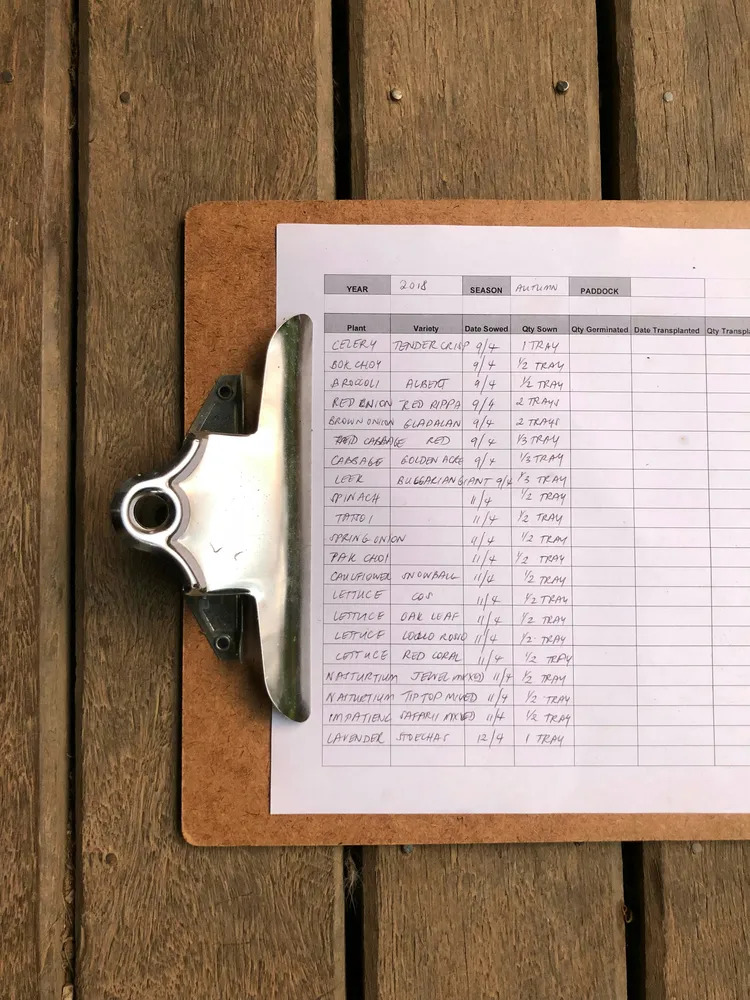
The Timesheets Hub gives each person a weekly grid of tracked hours, with filters for billable status, tags and date range. Admins and owners also get an All Timesheets view across the team, with weekly capacity next to actual hours, so it's obvious who is overloaded and who has room.
On Business Plus and Enterprise, ClickUp timesheet approvals add the control finance needs. People submit their week, each time entry locks on submission, and managers can review submitted time before it counts. An approver either approves or requests changes, which unlocks the sheet for edits and resubmission. Once a week is signed off, the approved time stays locked for regular members, and only admins and owners can change it.
Our view: if you only turn on one billing control in ClickUp, make it this one. Someone who knows the client relationship looks at the hours before they reach an invoice and catches the misfiled entry while it's cheap to fix. Keeping approved time locked for regular members also means the number you invoiced is the number that stays in the system.
Where Does Native ClickUp Time Tracking Fall Short?
Native ClickUp time tracking handles capture and approval well. Money is where it stops. There are no native hourly or cost rates: a feature request for hourly billable and cost rates has sat in "planned" status since November 2020 with more than 1,000 votes and no timeline. ClickUp can tell you a consultant logged 32 hours, but not what those hours are worth or what they cost you.
For a CFO, that's the gap that matters. Without cost and billable rates you can't calculate a billable amount per project, compare it with budget, or see margin by client. Some teams add a rate custom field and formula fields as a workaround, but formula math on time data gets fragile, and nobody wants to reconcile it at 11 p.m. before an invoice run.
Partial approval is the other gap. Native approvals work per timesheet, so you can't approve 30 hours and bounce the other 8. For people spread across several projects, one wrong entry means resubmitting the whole week.

When Does an Everhour Integration Make Sense?
This is where a dedicated time tool earns its seat. Everhour's ClickUp integration lets you set rates and billable defaults per person, project or task, adds budgets with alerts before they're exceeded, and lets managers approve, reject or partially approve submitted time. Approved time stays locked for regular members ahead of the invoice run. The timer still sits inside ClickUp, so what your team feels in Everhour is barely different from native tracking, and adoption doesn't dip.
From a finance seat, Everhour turns ClickUp task time into configurable reports covering cost, margin and budget burn by client. Everhour billing then pulls billable time and expenses into invoice templates you can copy into QuickBooks or Xero, and Everhour timesheets give managers the per-person weekly view. For firms invoicing consulting work from ClickUp tasks, it's usually the shortest path from logged hours to a sent invoice.
Harvest is the other common choice. The Harvest integration for ClickUp puts a timer on each task and writes entries that carry the task ID or title, which suits firms already invoicing from Harvest. Either way, pick one tool for time, not three. Parallel trackers are how hours get counted twice or not at all.
How Do You Report Utilization From ClickUp Data?
Utilization is simple arithmetic: hours flagged billable divided by available hours. ClickUp's Dashboards include Time Reporting, Timesheet and Billable Report cards. Filter the Billable Report card to a time range and a team, check billable status by person, and you have a utilization snapshot without leaving ClickUp. Set capacity in the Timesheets Hub so available hours mean the same thing for everyone. For forward-looking capacity, our Workload view guide covers the planning side.
Two cautions. Time Reporting cards don't include subtask time unless you turn on the card's Include Subtasks setting, which quietly understates ClickUp task hours on deeply nested projects. And native cards show hours, not dollars, for the reasons above. When leadership wants realization, margin or quarter-over-quarter trends, you're into data analytics territory, which our ClickUp Reporting Limits and Workarounds guide picks up.
If you're building the wider reporting habit, our piece on data-driven decision making covers how to get leadership to trust the numbers once they exist.
How Do You Get Time Before Invoicing Into Your Finance Stack?
Hours only pay off when they reach the ledger. Natively, you can export Dashboard time cards as CSV with fields like user, description, billable status, labels and start/stop times. Durations export in milliseconds, so convert them to decimal hours before the file reaches your accountant. ClickUp emails the file rather than downloading it, and exporting needs the export custom permission, so confirm whoever runs billing has it.
For recurring invoicing, a CSV hand-off gets old quickly. Either route approved hours through Everhour or Harvest into accounting, or build a scheduled pipeline through the ClickUp API into your ERP or BI layer. Our workflow and process automation team usually starts with the off-the-shelf connector and moves to the API only when volumes or rate logic outgrow it. The goal in both cases is to turn ClickUp task work into billable entries without anyone retyping hours.
Whichever path you choose, lock the sequence: approve, export, invoice. Pulling hours from unapproved weeks is how disputed invoices start.
What Does a Clean Month-End Billing Routine Look Like?
Weekly, everyone submits by Monday noon, managers review billable hours by Tuesday, and rejected weeks go back with a comment in ClickUp rather than a side conversation. Monthly, finance exports approved hours, reconciles them against each ClickUp project budget, and chases only exceptions. Quarterly, leadership reviews the overhead categories to see whether pre-sales or support creep calls for a pricing change.
Keep non-billable time in that quarterly review. A client that eats 20 unbilled support hours a month is a pricing conversation, not a timesheet problem. And keep approval notifications tight so reminders reach the right people; our post on never missing an important ClickUp update covers the settings.
The firms that track ClickUp work this way stop arguing about hours at month-end. By the time finance opens the report, the hours are already approved and tied to a task, so there's very little left to chase.
Frequently Asked Questions
How do I make time billable by default in ClickUp?
An owner or admin enables the Time Tracking ClickApp and sets the default per Space. Out of the box ClickUp marks every entry as not billable, so set client delivery Spaces to billable and leave internal Spaces alone.
Does ClickUp have hourly billing rates?
Not natively. There are no hourly billable or cost rates, so billable amounts and margin need a connected tool such as Everhour or Harvest, or a data pipeline.
Does ClickUp support timesheet approvals?
Yes, on Business Plus and Enterprise. People submit their week, entries lock on submission, and an approver either approves or requests changes. Native approvals work per timesheet, so you can't partially approve a week.
Which ClickUp plans limit time tracking features?
As of October 2026, billable marking, descriptions, tags and timesheet edits aren't offered on Free or Unlimited and are capped at 100 uses on Business. Unlimited use and timesheet approvals require Business Plus or Enterprise.
How do I calculate utilization from ClickUp data?
Divide hours flagged billable by available hours. Use the Time Reporting, Timesheet and Billable Report dashboard cards, set capacity in the Timesheets Hub, and turn on the Include Subtasks setting so nested work isn't understated.
Want Hours Captured for Billing From Day One?
VisioneerIT's ClickUp implementation team sets up Workspaces for firms that bill by the hour, covering billable defaults by Space, approval workflows, utilization dashboards and the hand-off to your finance tools. That work sits inside our project management practice, with data analytics support when you need margin and realization reporting on top. Agencies and consultancies can pair it with our ClickUp for professional services playbook.
If you're still weighing platforms, start with our monday.com vs Asana vs ClickUp vs Jira comparison. If you're already on ClickUp, grab the free industry-specific ClickUp flyer, browse more guides on our ClickUp learning hub, or book a free discovery call and we'll walk through your current setup.
Key Things to Remember
- Revenue leakage starts at capture. Lost hours are rarely recovered once a week has passed.
- Set billable defaults by Space so client delivery is billable unless someone decides otherwise.
- Log every hour against a task, with a description a client could read.
- Track billable and non-billable work together. The split explains utilization and exposes pricing problems.
- Timesheet approvals (Business Plus and Enterprise) lock approved hours and are the key billing control.
- ClickUp has no native hourly or cost rates, so billable amounts and margin need Everhour, Harvest or a data pipeline.
- Convert exports to decimal hours, and always approve before you export or invoice.
- Check plan limits: billable marking and timesheet features are capped below Business Plus.


