


ClickUp is very good at running work and noticeably weaker at explaining it to the board. Native reports cover status, workload and sprint charts, but the moment a PMO asks for a portfolio view across several accounts, a clean year-over-year trend or margin by client, they run out of road. This guide maps exactly where those limits sit, which export and integration routes fill each gap, and when a dedicated reporting layer in Power BI, Looker or Snowflake is worth the effort. If you own portfolio reporting and ClickUp is your system of record, it should save you months of trial and error.
What Can ClickUp Dashboards Report Natively in 2026?
More than most teams use. A single dashboard can hold up to 100 cards, and the card library covers task lists, pie and bar charts, workload, time reporting, goals and a set of time-based cards. ClickUp's time-based cards include burndown, burnup, cumulative flow, cycle time, lead time and velocity (available on Business and above), and they use each task's history to show work as it stood at earlier points in time.
For one team, that's often enough. A project manager can put project status, overdue work, load by assignee and a Gantt chart on one screen and run a weekly review from it. Custom fields can be charted too, so a "Client" or "Phase" field turns into a filter with no extra setup. For day-to-day project tracking and project progress, the native management features are strong.
Check plan limits before you promise anyone a report. Per ClickUp's dashboard limits, Free Forever allows 60 uses and Unlimited allows 100, where a "use" includes simply viewing one or editing a card. Business and above are unlimited. On the lower tiers, a team that checks its board daily will burn through the allowance in weeks.
Where Do ClickUp's Reporting Limits Show Up First?
They show up when reporting stops being about a team and starts being about the business. Three gaps come up in almost every PMO we work with: rolling up across accounts, trend reporting over long periods, and anything involving money. None of them is a bug. ClickUp is built as a work management platform first, and its reporting tools reflect that.
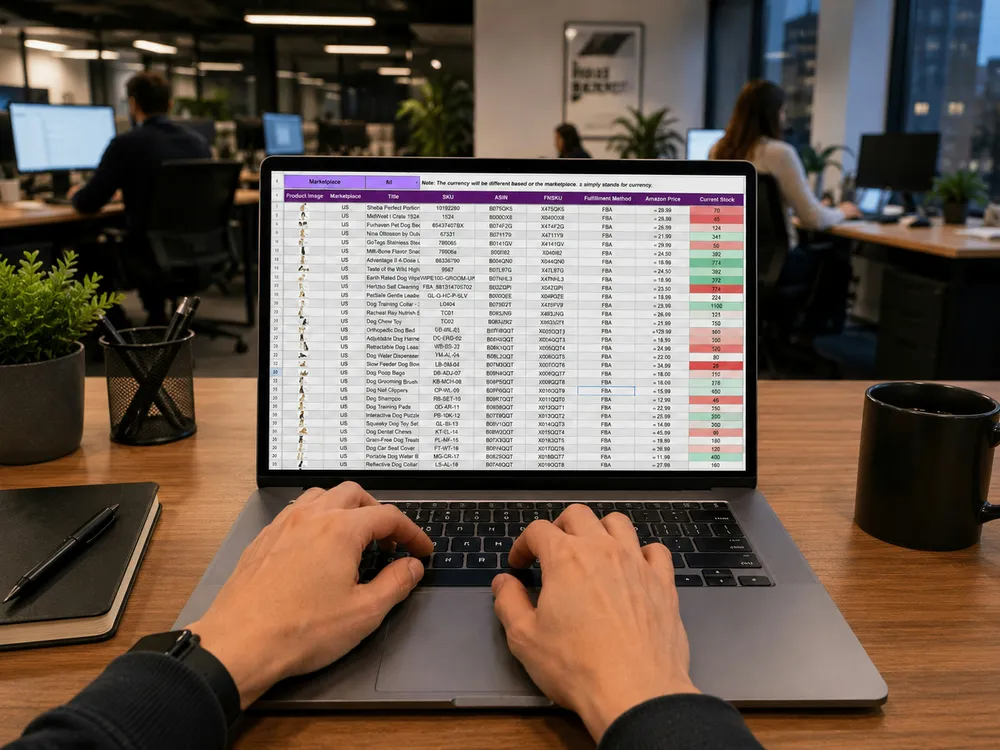
The early warning sign is the spreadsheet. When someone exports card data every Friday to paste into a slide, you've found the edge of native reporting. That weekly copy-and-paste is where errors creep in and where executive reporting loses credibility, because nobody can trace a number back to where it came from.
The fix isn't to abandon ClickUp. It's to decide which questions the tool should answer on its own, and which need project data pulled out and modeled somewhere else.
Why Can't You Roll Up Reports Across More Than One Workspace?
Because every report lives inside one Workspace and reads only that account's data. That's fine for a single company. It breaks for holding companies, PE operating partners overseeing several portfolio companies, and agencies that give each large client its own account. There's no native way to put multiple project portfolios from separate accounts on one screen.
Within one account, cross-Space reporting works well, which is why our ClickUp Hierarchy Explained guide recommends one Workspace per company wherever possible. When that isn't possible, the pattern is to pull each account's tasks through the API into one database and report from there. It's the only reliable way to see project health across entities.
For private equity teams this is often a day-one requirement, and it ties into the post-close visibility work in our guide to technology due diligence and integration for private equity.
What About Historical Trends, Time Tracking and Financials?
Time-based cards give you history, but they're built around task counts, stages and sprint points. If you need a monthly snapshot of a budget field, a year-over-year view of on-time delivery by program, or a record of how scope changed quarter by quarter, those snapshots have to be stored somewhere ClickUp can't overwrite them.
Money is the harder gap. ClickUp records hours, but it has no native hourly or cost rates, so time tracking data alone can't produce margin, revenue or project accounting figures. We covered the billing side in ClickUp Time Tracking for Billable Hours; the reporting consequence is that any view showing dollars has to join ClickUp hours to rates held somewhere else, whether that's a finance system or a dedicated time tracking tool like Everhour.
Resource management has a similar ceiling. The Workload view is good for next week's capacity, but forecasting utilization six months out across teams, or comparing planned against actual hours by role, is warehouse territory. That's where advanced reporting starts.
Which Export Options Does ClickUp Offer, and When Are They Enough?
There are three export routes. You can export a List or Table view to CSV or Excel, export individual cards to CSV, PDF or PNG, and export your account's data as a whole. ClickUp's view export limits note that Free Forever can't export List or Table views at all and Unlimited gets only three exports. Export links also expire after an hour, and very large account exports may not succeed.
Exports are enough for a monthly board pack or an occasional audit. They aren't enough for anything recurring. A manual export is stale the moment it's saved, and nobody remembers which filters were applied last month.
A practical rule: if a report is produced more than twice a month, or more than one person depends on it, stop exporting and automate the feed with a proper integration.
How Do You Build an API Integration Without Hitting ClickUp's Request Caps?
The ClickUp API exposes tasks, Lists, Folders, Spaces, custom fields, time entries and goals, which covers almost everything you'd want in a warehouse. The constraint is throughput. ClickUp's published rate limits are 100 requests per minute per token on Free Forever, Unlimited and Business, 1,000 on Business Plus, and 10,000 on Enterprise. Go over and the API returns HTTP 429 with headers telling you when to retry.
At 100 requests a minute, a full sync of a large account can take hours, so design for it: pull only tasks updated since the last run, schedule syncs overnight, back off on 429s, and give reporting its own token so it doesn't starve every other integration. Webhooks can push changes in near real time for the few objects that need it, such as a dependency change on a critical-path task.
You don't have to build custom connectors for everything. The open-source Airbyte ClickUp connector covers Spaces, Folders, Lists, tasks, list custom fields and time entries, though as of September 2026 it supports full-refresh syncs only, which makes those caps bite harder on big accounts. Other third-party tools exist, and our workflow and process automation team usually picks between a managed connector and a custom build based on data volume and refresh frequency.

What Do Power BI, Looker and Snowflake Patterns Look Like?
Most setups follow three reporting layers. First, a pipeline lands raw ClickUp data in a warehouse such as Snowflake, BigQuery or Azure SQL. Second, a modeling layer turns raw tasks into clean tables: projects, phases, people, hours, and a daily snapshot table for trends. Third, a BI tool sits on top, usually Power BI in Microsoft shops and Looker or Looker Studio for Google-centric teams.
The snapshot table is the part people skip and regret. Storing one row per task per day is what makes historical trends, dependency analysis and plan-versus-actual reporting possible later, and it supports better project planning because you can finally see how long work really took. Joining finance data at this stage puts cost, revenue and margin next to delivery metrics. Microsoft's Power BI guidance for Snowflake covers that integration with single sign-on so report access follows your identity rules.
This is where our data analytics practice spends most of its ClickUp time: designing the model so the dashboards and reporting built on it don't need rework every time someone restructures a Space.

Does a Separate Reporting Layer Make Sense for Project and Portfolio Management?
At scale, usually yes. A dedicated warehouse gives you one trusted record across accounts and tools, keeps history ClickUp would otherwise overwrite, and lets finance and delivery data share one model. It also takes load off ClickUp itself, since heavy report pages are a common reason large accounts slow down. For portfolio management and project monitoring across dozens of programs, that combination is hard to beat.
The trade-off is ownership. A warehouse and BI model need someone to maintain them, and every new custom field or restructured Space has to be reflected downstream. If you run fewer than a few dozen active projects in one account, native dashboards plus a monthly export may be the better call.
A good test is the question leadership asks most. If the answer lives entirely inside ClickUp ("which projects are late?"), keep it native. If it needs finance, HR or CRM data ("which clients are least profitable?"), build the warehouse.
ClickUp vs Jira: Which PM Tool Reports Better?
It depends on who's reading. Jira's strength is engineering reporting: sprint, velocity and release reports are mature, and JQL lets software teams slice issues precisely. On Enterprise, Atlassian Analytics adds a data lake and SQL-based charts that can also query Snowflake and other sources. That's a real advantage for organizations already paying for Atlassian Enterprise.
ClickUp is broader. It covers task management, docs, knowledge management, goals and time tracking in one all-in-one project management platform, and its reports are easier for non-technical teams to build. For a marketing team or an operations group, it's usually the friendlier project management tool, and the best ClickUp setups make team collaboration visible without extra software. Jira rarely fits outside development tools and IT, and its advanced project reporting leans on Marketplace apps.
So is Jira an alternative to ClickUp for reporting? Only if your reporting is mostly about engineering delivery. For mixed project types, both tools hit the same wall at the enterprise project management level, and both end up feeding a warehouse. If you're comparing ClickUp alternatives for 2026 more broadly, our four-way comparison of monday.com, Asana, ClickUp and Jira and our Smartsheet vs ClickUp comparison look at which is the best project management software for different teams.
Should Collaboration Tools and Other Systems Feed the Same Reports?
Some should. Delivery information rarely lives in one place. Status updates happen in Slack or Teams, files sit in document management systems, design work lives in Figma, and pipeline data sits in HubSpot. ClickUp's native connections cover many popular tools, and its integration options include a public API and webhooks for external tools and internal tools that aren't on the list.
The question is which of those feeds belong in reporting. Communication tools and collaboration tools are usually context, not metrics, so link to them rather than modeling them. Design tools matter only if review cycles are a bottleneck worth measuring. CRM and finance data almost always matter, because that's where revenue and cost live.
Be selective. Each integration you add is another feed to monitor, another schema that can change, and another line in the cost of maintaining multiple tools. Several tools feeding one clean model beat a dozen half-connected ones.
How Do You Pick the Right Workaround for Your Workflow?
Match the fix to the question, the project size and how often it's asked. For weekly team views, native reports are the answer, so put the effort into consistent custom fields and stages instead. For monthly packs, scheduled exports or a light connector into a spreadsheet will do. For portfolio, financial or multi-account reporting, build the pipeline and the model.
When evaluating project management reporting options, ask three things: who reads this, how often, and what outside data does it need? The answers usually point clearly to one of those tiers. If they point to all three, start with the executive view and work down, because that's where good workflow management pays off first.
Whichever tier you choose, document the definitions. "On time," "active project" and "utilization" should mean the same thing in ClickUp, in the warehouse and in the board deck. That consistency will boost productivity in the reporting cycle more than any tool choice, and it keeps every workflow downstream honest.
Frequently Asked Questions
What can ClickUp dashboards report natively?
A single dashboard holds up to 100 cards, covering task lists, pie and bar charts, workload, time reporting, goals and time-based cards such as burndown, burnup, cumulative flow, cycle time, lead time and velocity (on Business and above).
Can ClickUp report across multiple Workspaces?
Not natively. Every report lives inside one Workspace and reads only that account's data. To see project health across accounts, pull each account's tasks through the API into one database and report from there.
What are ClickUp's API rate limits?
100 requests per minute per token on Free Forever, Unlimited and Business, 1,000 on Business Plus, and 10,000 on Enterprise. Go over and the API returns HTTP 429 with headers telling you when to retry.
Can ClickUp show margin or revenue natively?
No. ClickUp records hours but has no native hourly or cost rates, so any view showing dollars has to join ClickUp hours to rates held in a finance system or a dedicated time tracking tool.
When do we need Power BI, Looker or a warehouse?
When a question needs finance, HR or CRM data, historical snapshots, or data from more than one account, or when a report is produced more than twice a month and several people depend on it. If the answer lives entirely inside ClickUp, keep it native.
Need a ClickUp Reporting Layer That Leadership Trusts?
VisioneerIT's ClickUp implementation and data analytics teams design the pipeline, the model and the executive views together, so what leadership sees ties back to the tasks your teams update. If the problem starts upstream with inconsistent fields or a sprawling structure, our project management practice fixes that first, and together they give you the management capabilities a growing PMO needs.
For more on turning numbers into decisions, read our guide to data-driven decision making or our look at how AI is changing business intelligence. Then see our approach to ClickUp for project delivery, grab the free industry-specific ClickUp flyer, or book a free discovery call to map your reporting gaps.
Key Things to Remember
- Native dashboards cover team needs well: status, workload, Gantt, burndown, cycle time and velocity.
- They can't roll up across accounts, don't store custom-field snapshots, and can't show dollars without outside rate data.
- Exports suit occasional packs; anything produced more than twice a month should be automated.
- API throughput is 100 requests per minute per token below Business Plus, so design syncs around it.
- The standard pattern is pipeline, warehouse with a daily snapshot table, then Power BI or Looker on top.
- Jira reports better on engineering delivery; ClickUp suits mixed teams. At portfolio scale, both need a warehouse.
- Only feed reports with data that answers a leadership question, and document every metric definition.


