



.svg.png)

New to the platform and not sure where to click first? This tutorial for beginners walks through everything you need to go from a blank screen to a working system: creating your first board, picking the right view, automating repetitive work, and building a dashboard that actually tells you something. monday.com is a powerful project management platform that helps teams organize projects in one place, track progress, and automate repetitive tasks without manual work. By the end of this tutorial, you'll know exactly how to use monday.com for your own team, not just in theory.
How Do You Get Started With monday.com?
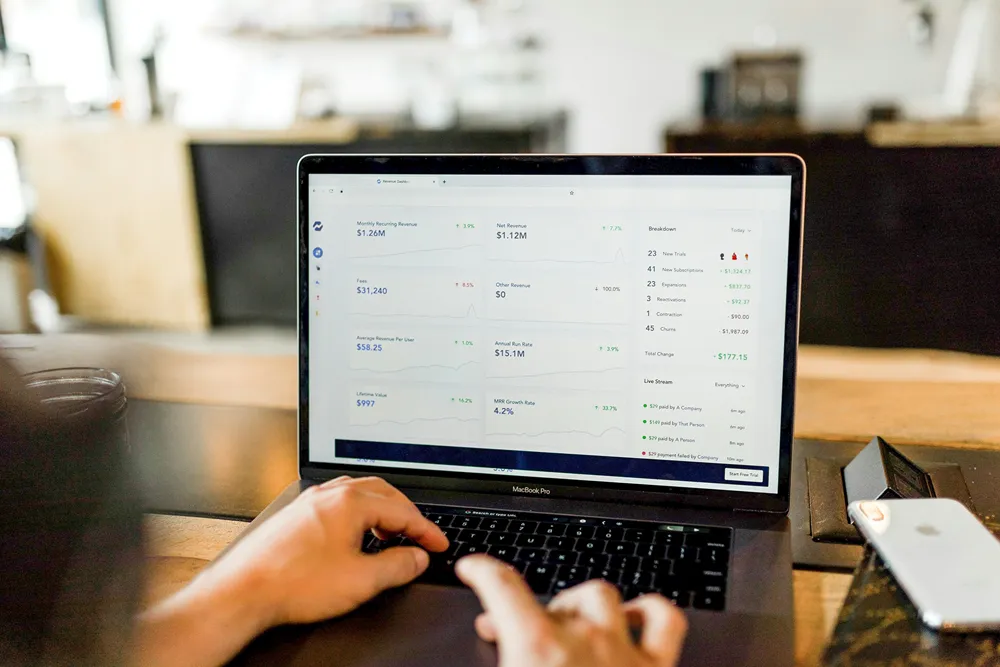
Getting started with monday.com begins with a free plan: no credit card, no trial countdown, just an account with two seats and three boards to experiment on. That's plenty of room to build a first board, try an automation or two, and decide whether the platform fits before committing to anything paid.
Signing up takes an email address and a workspace name, and your new monday.com account is ready in under a minute. From there, monday.com drops you into a short setup flow asking what your team does, which shapes what it suggests next. monday.com's own getting-started guide covers this in more depth if you want to see every option before picking one.
This monday.com tutorial assumes you're starting from scratch, but the same basics apply if you're joining an existing account someone else already set up. Either way, the learning curve is real but short. Most people spend their first hour clicking around a sample board. By the second, they start using monday.com for something that actually matters.
What Is a Workspace, and How Do You Create Your First One?
A workspace is the container that holds everything: boards, docs, dashboards, and the people who can see them. Larger teams often run several workspaces, one per department, while a small team might live entirely inside one. Name yours something specific rather than leaving the default; that's what everyone sees when switching between projects later.
To start one, click the big blue "+" button and choose a starting point: a blank board, or a template for a specific type of work, like marketing campaigns, hiring, or product launches. For a first project, starting from a template usually beats a blank board, since it gives you real columns and status labels to react to instead of a wall of empty cells.
A board itself is simple at heart: rows called items, organized into groups, with columns holding whatever data matters, status, owner, date, priority, or anything custom. Building your first monday.com board rarely takes more than ten minutes once you've picked something close to your actual project requirements. The rest of this tutorial builds from there.
How Do You Customize a Board With Columns and Templates?

Every column type solves a specific problem. A status column gives you labeled stages like "Working on it," "Stuck," or "In Progress," each with its own color. A people column assigns an owner, a date column tracks deadlines, and a number or formula column can calculate totals or anything else derived from the rest of the row.
To customize a board, click the "+" at the end of the column headers and pick a type, or drag an existing one to reorder your view. None of this is permanent or risky. Columns can be renamed, resized, or deleted without touching the data underneath them, which makes experimenting with layout low-stakes while you figure out what your team actually needs to see.
monday.com templates exist for nearly every department, and starting from one is usually faster than building from nothing, even if you end up changing half the columns. Once you've adjusted a board to fit your process, save it as your own version so the next one starts there instead of from a generic starting point.
What Are the Different Views in monday.com?
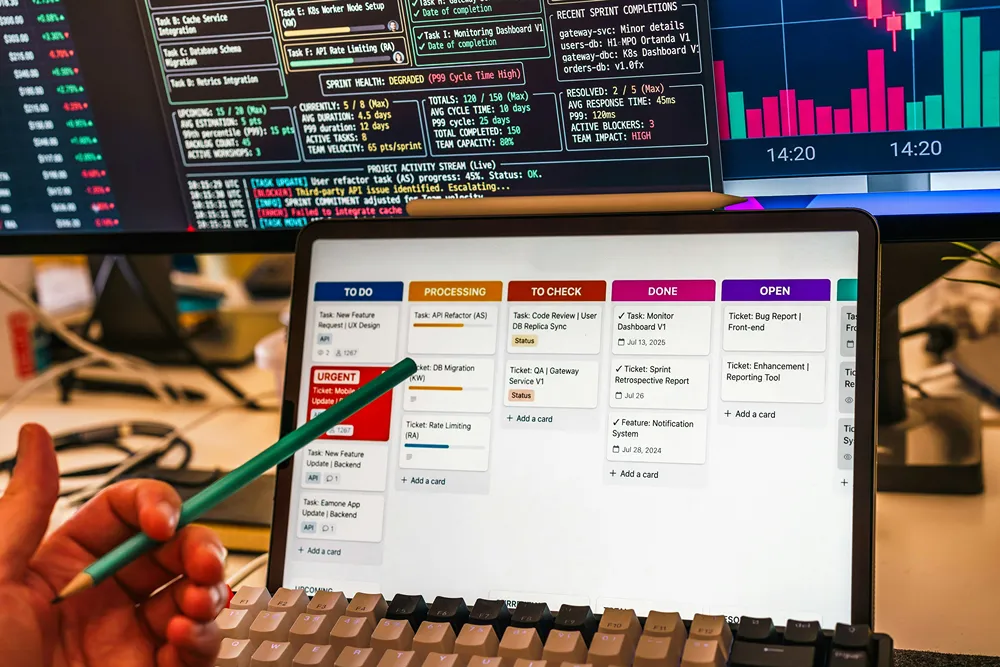
The same board data can be viewed several ways, and switching between them doesn't touch the underlying information. The default table view lists everything in rows and columns, which is the easiest place to scan status across a large board at once.
The kanban view turns each status into a column of cards, which suits teams whose work moves through visible stages: support tickets, hiring pipelines, content approval, anything with a clear left-to-right flow. The underlying methodology predates monday.com by decades; this board is really just a digital version of the same idea. The timeline view plots tasks against dates instead, which is the better choice when you need to see overlapping work rather than just current stage, and a Gantt chart specifically highlights how those tasks line up against each other over time.
Picking the right view comes down to what you're doing more than preference. A support queue usually wants a kanban board. A product launch usually wants a timeline view instead. A content calendar wants the calendar view, plotting items by due date across an actual month grid. None of these choices are permanent, and most teams end up switching depending on who's looking and why.
How Do You Set Up Automations in monday.com?
The Automation Center is where a board stops being static and starts doing work on its own. An automation is a simple rule: when something happens, do something else. When a status changes to "Done," notify the owner. When a due date arrives with nothing marked complete, send a reminder. When a new item is created, assign it to a specific person automatically.
Setting one up takes a couple of clicks: pick a trigger, pick an action, and save. No code, just a sentence built from dropdown menus. Teams that automate this way tend to notice the difference immediately, since the manual status-nagging that used to eat up a chunk of every week just stops happening, and the whole workflow moves without anyone pushing it along by hand. Our broader guide to enterprise workflow automation tools covers this pattern well beyond monday.com specifically.
The center also comes with pre-built recipes for common situations, so you rarely need to build one entirely from scratch. Start with a recipe close to what you need, adjust the specifics, and expand from there as your process gets more particular about what should trigger what. This is also where monday.com starts to streamline work that used to live entirely in someone's head.
How Do You Build a Dashboard That Shows What's Actually Happening?
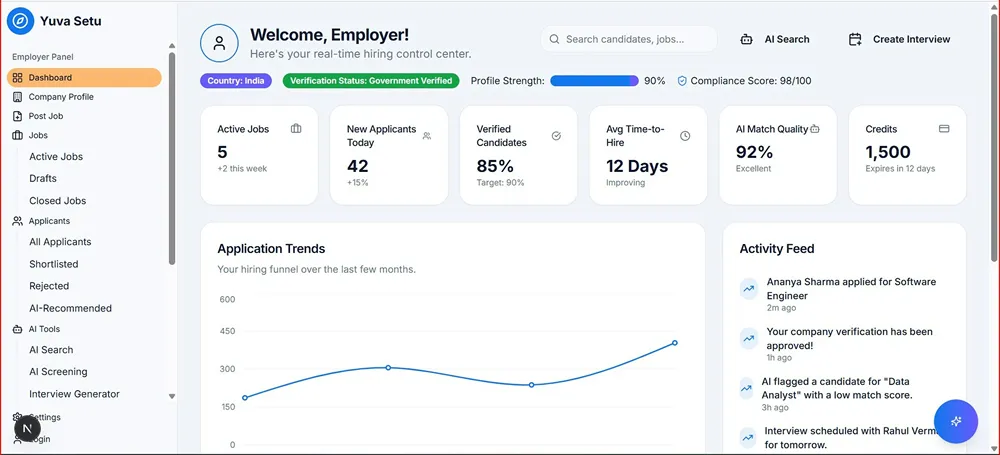
A dashboard pulls information from one or more boards into a single view built from widgets: charts, numbers, timelines, and bars that update automatically as the underlying boards change. Nothing on it is manually entered; it's all reflecting whatever's actually happening on the boards feeding it.
Building one starts with picking which boards feed it, then adding widgets one at a time: a chart widget for status breakdowns, a number widget for a running count, a timeline widget for a bird's-eye view across everything. A time tracking widget is useful if your team logs hours and wants a live total without exporting anything to a spreadsheet.
A monday.com dashboard genuinely earns its keep once a team is running several boards at once, since checking each one separately for status is exactly what automation exists to prevent. A well-built one turns the weekly status meeting into a five-minute glance instead of a round of individual updates.
How Do You Structure Work Across Several Boards?
Most teams start with one board and end up with several: one per client, one per department, or one per active initiative. Deciding how to manage tasks and projects at that scale matters more than it seems, since the wrong structure makes it harder to sort items or spot what's overdue later.
A common pattern is one board per specific project, with a shared dashboard rolling all of them up for anyone who needs the big picture without opening five tabs. Another is a single project tracker with a "project" column separating everything, which suits smaller teams juggling multiple projects without a full board each. Either way beats a spreadsheet, mostly because updates live where the work actually happens.
Even a personal project benefits from the same structure at a smaller scale, and it's just as easy to manage your projects solo as it is with a full team behind you. A single project board with a status column and due dates gives you the same visibility, just without the collaboration layer turned on.
How Does monday.com Help Teams Stay Productive?
Every board update, comment, and status change is visible to every team member with access, which removes most of the "did anyone see my message" back-and-forth that email and chat tend to create. Assigning an owner to every item means nothing falls into a gap where everyone assumed someone else had it.
monday work management leans hard on this kind of visibility for productivity gains: less time spent asking for status, more time spent doing the work being tracked. It's also part of why small teams can manage projects without a dedicated PM hire once boards and automations are doing the coordinating. Notifications keep people looped in without anyone manually updating a spreadsheet, and the work management tools covered earlier remove a lot of the nudging that used to fall on whoever was managing the project by hand.
None of this replaces good management, but monday.com work happens where people can actually see it, which is usually where the real time savings show up, a theme our workflow management guide covers in more depth for teams outside monday.com too.
What Makes monday.com a Powerful Tool for Growing Teams?
monday.com offers a genuinely wide feature set for a project management tool built around boards rather than documents or spreadsheets. It's part of why so many comparisons of project management software and management platforms put it near the top for ease of use. monday.com integrates with the tools teams already use, Slack, Gmail, Google Drive, and dozens of others, so information doesn't need to be copied between systems by hand, and monday.com includes time-based columns, file storage, and forms for collecting external requests directly into a board.
Features like automations, dashboards, and multiple views are what separate real management software from simple task management, and monday.com allows every one of them to run on the same board without conflicting. That combination is what starts to unlock the full potential of monday.com project management for a growing team: the same data viewed as a timeline by one person and kanban by another, with a dashboard summarizing both for leadership. Features of monday.com like this are exactly why it shows up so often in any serious monday.com review.
Compared to a plain to-do list, this is what pushes monday.com into proper work territory rather than a glorified checklist.
Locked In and Want This Set Up Properly? Here's Where a Partner Helps
As an official monday.com partner, VisioneerIT spends most weeks doing exactly what this guide covers, just for teams who'd rather not spend their first month figuring out board structure by trial and error. Our monday.com support hub handles setup questions with three free queries before anything costs a thing, which covers most of what a new account actually needs.
For teams past the basics, a workflow and process automation review often finds a few automations worth building that nobody had gotten around to, and our project management support helps when board structure needs to scale past what worked for five people. New hires rarely need more than an hour of guidance to get comfortable, and our team training sessions cover exactly that instead of leaving everyone to figure it out from scratch. For organizations rolling this out across departments rather than one team, our workforce development work handles the adoption side properly. Some teams use monday.com to handle everything from client work to internal ops, and our take on business process automation covers why structuring that well from day one saves a rebuild later. Want a second set of eyes on your setup? Get in touch and we'll take a look.
Frequently Asked Questions
Is there a free trial to see monday.com before committing? The no-cost tier itself works as an ongoing trial. Forbes Advisor's own testing has called monday.com's interface one of the easiest to pick up among free planning apps, which lines up with most people's experience in that first hour.
What's the fastest way to learn how to use it and actually stick with it? Start from a template close to your real work instead of a blank board, and build your first dashboard only after a board or two already has genuine data in it.
Is monday.com and how to use it only relevant for project managers? No. Sales teams use monday.com to organize pipelines, marketing teams run content calendars, and plenty of people run a solo project on a free-plan board with nobody else involved.
Where can I find a proper beginner's guide beyond this one? This guide on how to use it covers the essentials; monday.com's own Academy goes deeper into individual features once you've got the basics down.
Key Things to Remember
- Start with a template rather than a blank board; it gives you real columns and status labels to adjust instead of empty cells.
- Views (table, kanban, timeline, Gantt, calendar) all show the same underlying data differently, so switch based on use case, not habit.
- The Automation Center replaces manual status-nagging with simple trigger-and-action rules, no code required.
- A dashboard only becomes genuinely useful once you're managing multiple boards worth checking at a glance.
- Structure boards around how your team actually works, one per client, department, or project, rather than forcing everything into one.
- The no-cost tier is enough to properly test the platform before deciding whether to upgrade.
Related Reading
Once boards, views, and automations feel familiar, the next steps are usually a form to collect structured requests (see the forms guide), connecting boards across teams (see the connect and mirror columns guide), or exploring monday.com's built-in CRM (see the CRM guide). Wondering when it makes sense to bring in outside help instead of building further alone? Our DIY vs. certified partner guide covers that.
Ready to set your board structure up properly before habits get baked in?
Talk to VisioneerIT's monday.com implementation team about structuring your first boards, views, and automations the right way from day one.

%402x.svg)
%402x.svg)

