



.svg.png)

Locked out and not sure why? Nine times out of ten it comes down to one of a handful of things: the wrong workspace address, expired credentials, a mismatched email, or a phone-based security step you no longer have access to. This guide covers the basics of logging in to your monday.com workspace, what to do when you're locked out, how single sign-on (SSO) changes the picture for managed teams, and a short list of troubleshooting steps for the “can't log in” screen. If you manage a team, there's also a section on the admin side of resets, since half these problems get fixed by someone else on the account, not by you.
How Do You Log In to monday.com for the First Time?
Every monday.com account has a unique web address, something like yourcompany.monday.com. On the login page, you'll usually need to type in your account URL before anything else, just the “yourcompany” part, not the full address. That single detail trips up more people than anything else on this list, mostly because it's easy to forget a company ever picked a custom subdomain in the first place.
If you don't remember it, there's a “Forgot your account URL?” link right there that emails it to you. Once you're on the right workspace, log in using your usual sign-in details the normal way, or a one-click option through Google, Apple, Slack, or LinkedIn if your team set that up instead.
The fastest way to log in to your account next time is bookmarking that address once you're in. Guessing at it from memory is exactly how people end up staring at somebody else's sign-in screen, or trying their account using the wrong email entirely. Ask whoever set up your access for the exact address when you're onboarded, rather than reconstructing it later. Once you're in, our step-by-step guide for beginners covers what to do with that first board.
What Do You Do If You Forgot Your Password?

Click “Forgot your password?” on the sign-in page. Enter your email address and monday.com sends a link to your email — specifically, whatever email address associated with your account is on file, which may not be the inbox you're currently checking. Open the email, click through, and you'll land on a page to create a password. Pick something you don't already use somewhere else — reusing the same one across services is how a single leaked account becomes several.
Using a password manager instead of memorizing anything is worth the five minutes it takes to set up. It also solves a smaller, more annoying problem: the address behind your account may not be the first one that comes to mind, and a lot of these recovery tickets turn out to be someone testing three different addresses before finding the right one. It's also worth knowing why a compromised inbox is worth more to an attacker than people assume: the account tied to your sign-in is usually tied to a dozen others too.
If the reset link never shows up, check spam first, then confirm the address on file actually matches what your team gave you access under. Once it arrives, use the link to reset your password and log back in — after that, you'll be able to log in the same way every time.
Should You Sign In Manually, or Use SSO Instead?

Plenty of accounts support both. On the login screen, you'll either be prompted to enter your sign-in details directly, or your organization may route you through SSO instead, so you never see a monday.com password field at all. Neither is “better” in the abstract — it depends on what your IT team configured.
If you're signing in this way, you'll type your email address and password together, and that's the whole process. If your company runs SAML SSO through an identity provider like Okta or Azure AD, you'll instead enter your work email, get redirected to that provider's own screen, and come back already signed in. Okta's own explainer on how SAML works covers that handoff well if you want the mechanics.
Mixed teams are common. A company might require SSO for full members while letting guests log in with an email instead, since guest accounts often aren't tied to a corporate email domain at all. If you're not sure which category you fall into, ask whoever manages your account rather than guessing from the sign-in screen.
How Do You Set Up SAML SSO?
SSO means one sign-in covers every connected tool your company uses, monday.com included. Instead of keeping a separate sign-in for this one, your identity gets verified once by an identity provider, and that trust carries over to every app set up to accept it. That's one of several access-control approaches worth knowing as a tool stack grows.
Getting SAML SSO running happens from the admin side, not as an individual user. An account admin adds the provider's details in account settings, and once it's active, every team member gets an email explaining how to sign in through the new method. There's also a way to carve out an exception for guests and a single specified user, which matters for teams with outside collaborators who don't have a company email at all.
One detail worth knowing: if you ever change your email while set up this way, monday.com tracks you by an internal ID, not just your email string, so a plain email change can quietly break your access. If that happens, an admin needs to open the user management tab, click the three-dot menu next to your name, and select Reset SSO UID before you can sign back in. It's a two-minute fix once someone knows to do it, and a genuinely confusing one if they don't.
How Does Two-Factor Authentication Work, and How Do You Reset It?

This step, 2FA for short, adds a check on top of your first one: a code from an authenticator app, or a text message to your phone. It's optional at the account level, but once an admin turns it on, every member and guest gets asked to set up a preferred method the next time they log in — the full mechanics are in monday.com's own guide to the feature.
Setting it up means scanning a code with an authenticator app, or entering a phone number for SMS instead. Either way takes under a minute, and from that point on you'll confirm a fresh code each time you sign in manually — SSO skips this step entirely for anyone using it, since their provider already handled verification. CISA's guidance on multi-factor authentication is worth a look if you're deciding whether to require it account-wide rather than leaving it optional.
Lost your phone or deleted the app that generated your codes? If you can still access your account, you can reset your own method from your profile without asking anyone. If you're locked out entirely, an account admin can reset two-factor authentication for you from user management, and you'll be prompted to set a method again the next time you log in. There's also a quieter safeguard that can email you a one-time code on a suspicious sign-in attempt even if you never turned this on yourself — the same logic behind why extra verification steps matter so much for breach prevention in far more sensitive systems than a project board.
How Do You Log In to the Mobile or Desktop App?
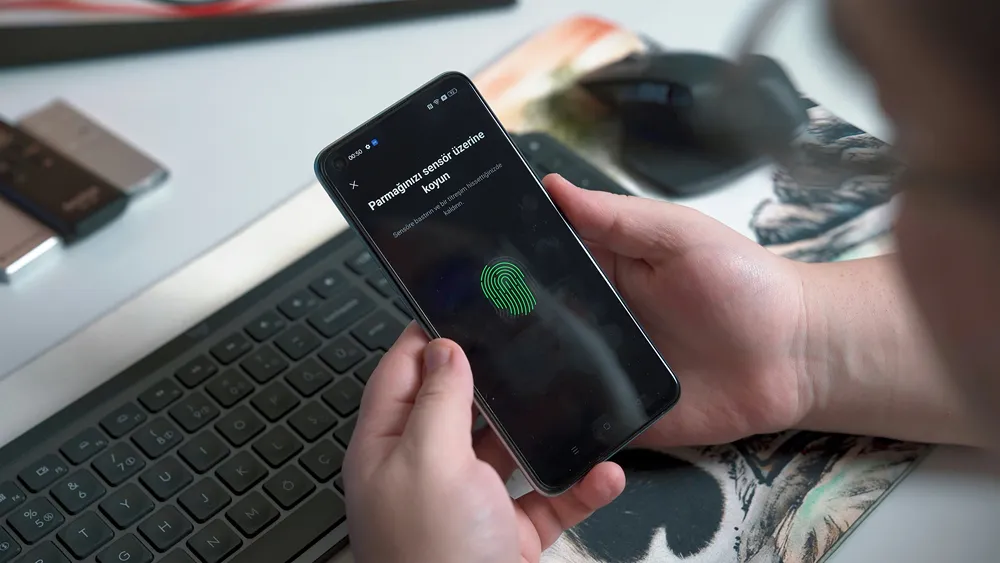
Download the app from Apple's store on iOS, or the Windows app store for a desktop client, and open the app for the first time. You'll land on a screen that looks almost identical to the browser version, and the same address and sign-in rules apply.
There's a faster option worth knowing about. If you're currently on a browser or the desktop app, click your profile picture, select “Mobile app,” and scan the QR code that pops up with your phone's camera. No typing an address on a small screen, and you're in monday.com mobile within seconds. If scanning feels like a hassle, use browser login on your phone instead and skip the app-specific flow entirely.
One quirk to watch for: the monday.com app sometimes tries opening whatever email client is set as default on your phone, which isn't always the inbox tied to your account. If that happens, tap the option to enter your password manually and skip the email step.
What If There's More Than One Account Under Your Email?
Multiple monday.com accounts under one email happen more often than you'd think — a personal workspace and a company one, for instance, or accounts from two different jobs. When there's one account associated with an email, the system knows exactly where to send you. When there's more than one, it doesn't.
In that case, you'll be prompted to enter your account's domain before it lets you continue. It's the same short piece of information you'd use to find your workspace in the first place, just asked for at a different point in the flow. If you've genuinely forgotten it, the same recovery link solves it here too, and you're back into the right account easily.
Browser keeps landing you in the wrong account entirely? Look for an option to sign into a different account instead of fighting it. This comes up more than you'd expect for people who've collected multiple accounts across old jobs and side projects over the years, and it's a two-click fix once you know where to look, not a reason to open a ticket.
Why Can't You Log In, and What Does the Warning Banner Mean?
If your account has been deactivated, monday.com shows a red banner across the top of the screen: “User is inactive. Please contact your account admin.” That message means your sign-in details are working exactly as intended — the account itself is just switched off, usually from an offboarding step or a lapsed license seat.
Login issues that aren't about deactivation tend to fall into a short list: wrong workspace address, wrong email, a sign-in that's gone stale, or a second-factor method you can't reach anymore. Working through them in roughly that order clears up most cases without ever needing to contact support. monday.com's own help center even splits this into an Account – Support section and an App – Support section, depending on whether the trouble is with signing in or with the client you're using.
Ruled out everything above and still stuck? Your account or user profile may simply be closed rather than deactivated, which only the account owner can reverse. There's a real difference between the two on monday.com's end, even though both look identical from where you're sitting: no obvious next move.
How Do You Accept an Invitation to Join an Account?
Guest access starts differently than a regular sign-in. When someone invites you to a board, you'll get an email with an invite link. Click Accept Invitation and you'll land in a short profile setup rather than a sign-in screen.
The email address you used to create your account is the one tied to that specific workspace going forward, so if a colleague later invites the same address to a different account, you may end up juggling more than one sign-in under a single inbox. That's normal — it's the same multiple-accounts situation covered above, just arriving through an invite instead of a manual sign-up.
Guests generally aren't required to go through the same verification even on accounts that mandate it for everyone else, since a guest's email typically isn't managed by that organization's directory. Whether you're using monday.com as a guest on one board or as a full member across every workspace, the mechanics underneath stay the same once your profile exists.
Locked Out More Often Than You'd Like? Here's What a Partner Can Do
As an official monday.com partner, VisioneerIT spends a lot of time in the exact settings screens covered above — identity and access setup, authentication policy, user management — for clients who'd rather not relearn this every time someone joins or leaves. If this kind of trouble is a once-a-quarter annoyance on your account, our monday.com support hub handles it with three free queries, and you're back in your account without waiting on anything else.
If it's more constant than that, the real fix usually isn't more guesswork; it's tightening the setup so fewer people hit the wall in the first place. That's where a cybersecurity consulting review of your authentication and sign-in policy earns its keep, alongside dark web monitoring if reused sign-in details across tools are part of what's driving the repeat tickets. For teams onboarding a lot of new hires, our security training sessions cover this kind of account hygiene up front, and it's usually cheaper than the tickets it prevents. Want a second opinion on your current setup? Get in touch and we'll take a look.
Frequently Asked Questions
I forgot both my workspace address and how to get back in. What now? Start with the account-recovery link for your workspace address, then use the separate recovery option once you're looking at the right screen. They're two different links doing two different jobs.
Can I fix my own second-factor method myself? Yes, as long as you still have access to your account. If you're locked out entirely, an account admin handles it for you from user management.
Why does the app keep sending me somewhere strange? That's usually a browser remembering a different account than the one you're trying to reach. Look for the option to switch accounts rather than clearing your entire browser history.
I'm an admin. Where do I go to fix someone's SSO or second-factor setup? Both live under user management: find the person, and the option sits a couple of clicks in.
Does the second-factor requirement apply to guests too? Yes, though most accounts that mandate extra verification exempt guests from it, since guest emails usually aren't inside the company directory.
Key Things to Remember
- Your workspace address (the part before “.monday.com”) is separate from your sign-in details — forgetting it causes more trouble than people expect.
- One recovery link handles your password; a separate one handles your workspace address. Use whichever matches what's actually stuck.
- SSO and the second-factor check are separate systems, and using SSO skips monday.com's own sign-in screens entirely.
- A locked second-factor method just needs an admin to fix it from user management — it's not a reason to rebuild your sign-in from scratch.
- “User is inactive” at the top of the screen means a deactivated account — that's on your admin to fix, not something you caused.
- Multiple accounts under one email address are common and easy to manage once you know to enter the right domain when asked.
Related Reading
If login issues turn out to be part of a wider outage rather than an account problem, the status and outage guide covers how to confirm that quickly. New to the platform generally? Start with the beginner's guide.
Access problems for your team pointing to a bigger setup issue than one password reset?
Talk to VisioneerIT's monday.com implementation team about tightening your account, SSO, and permission structure so fewer people hit this wall in the first place.

%402x.svg)
%402x.svg)

